

If you were using a legacy Office 365 E3 Developer MSDN subscription and suddenly lost access to OneDrive and Outlook after Microsoft retired the subscription, don’t panic immediately.
I recently run into exactly this situation.
Microsoft officially retired Office 365 E3 Developer license in early 2026. However, some of users — including me, could still use it after that message was announced. Last week my Office 365 outlook suddenly couldn’t log in, and even worse — My OneDrive didn’t work either!
I checked the admin portal and it showed the subscription was disabled. After one day, it eventually marked as deleted, SharePoint Online stopped working, my OneDrive Personal Site became inaccessible, and even SharePoint Online PowerShell could no longer connect.
At first, it looked like the data was gone.
Fortunately, I was able to get my OneDrive back and download the data. This article documents exactly what worked for me, in case someone else runs into the same problem. Hope this article helps.
To be clear, this is based on my own experience with a legacy Office 365 E3 Developer MSDN subscription. Microsoft may change the behavior of data retention policy in the future, so please recover your data as soon as possible, and treat this as a receovery workround instead of an official Microsoft recovery procedure.
What happend
I had an old Office 365 E3 Developer MSDN subscription, which was originally granted 10 years ago from the Microsoft MVP program. On 28, September, in the Microsoft Admin Center, the subscription eventually showed a warning like This subscription is disabled. Your data will be deleted affter September 29, 2026 .
As Microsoft retired the E3 sku, the subscription was not renewable anymore, and eventually its status changed from Disabled to Deleted after one day. At that point, several things stopped working:
- Outlook stopped working
- OneDrive stopped working
- SharePoint Online stopped working
- My OneDrive Personal Site could no longer be opened

An OneDrive URL is normally like this: https://<tenant>-my.sharepoint.com/personal/<user>_<domain>/.
Are my files deleted permanately?
Interestingly, I could see some files in the search page, but when I clicked the link, it showed:
This site can’t be reached
The web page at https://<tenant>-my.sharepoint.com/personal/<user>_<domain>/xxx.yyy might be temporarily down or it may have moved permanently to a new web address.
This was confusing because the Microsoft 365 Search index still knew about the files, while the actual SharePoint site was inaccessible.
At this point, I wasn’t sure whether the files had actually been deleted or whether SharePoint access had simply been disabled.
SharePoint Online PowerShell not working either
Then I found this page: https://learn.microsoft.com/el-gr/sharepoint/restore-deleted-onedrive. It introduced the SharePoint Online PowerShell to recoveer deleted OneDrive. For example:
Get-SPODeletedSite -Identity <URL>Then restore the OneDrive to an active state:
Restore-SPODeletedSite -Identity <URL>However, in my case, I couldn’t use it because first I needed to connect to the SharePoint site using:
Connect-SPOService -Url "https://<tenant>-admin.sharepoint.com"This command failed with:
Connect-SPOService: Could not connect to SharePoint Online.So it wasn’t just my OneDrive Personal Site. SharePoint Online itself was no longer available for my tenant.
The Solution
I found this post https://techcommunity.microsoft.com/discussions/AdminCenter/error-office-365-e3-developer-license-will-be-deleted-on-xxxxx-currently-disable/4560112
And fortunately, a user A_T_B replied to my question. The important discovery was that I didn’t need restore the old E3 Developer subscription, because it was already deleted and could not be renewed.
Instead, I need to give the user another valid Microsoft 365 product license that included OneDrive.
Step 1 — Add another Microsoft 365 product
In the Microsoft 365 Admin Center, go to your products/subscriptions page.
Look for:
Add more products
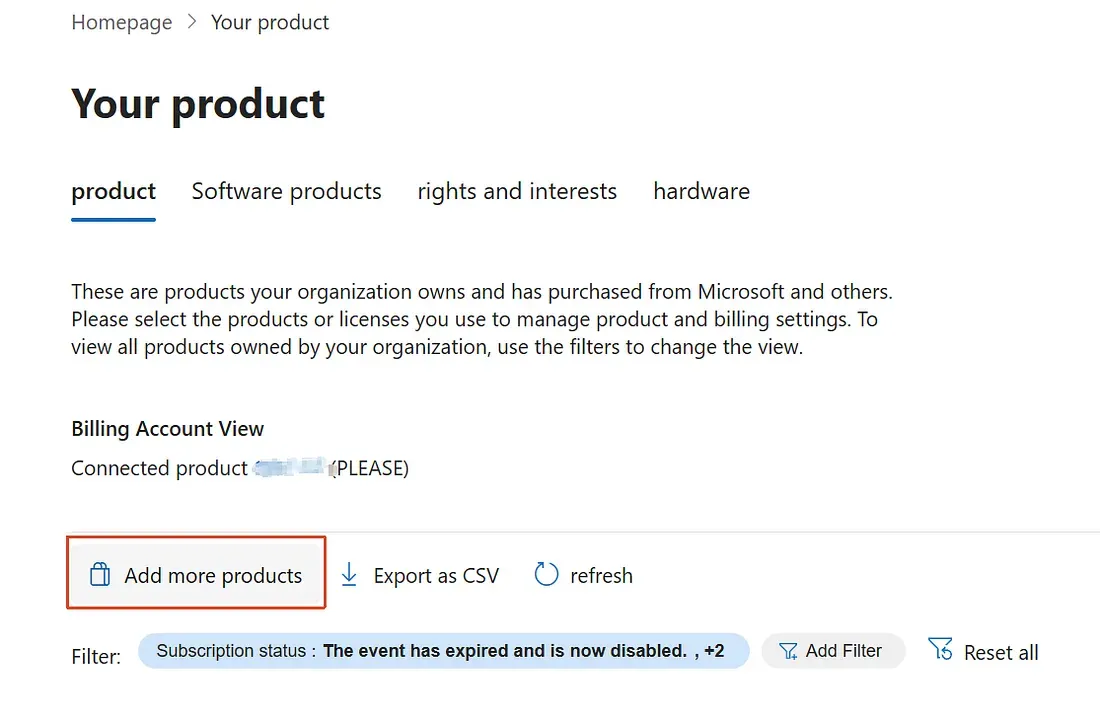
Then choose:
View all products
Among the available products, I found a free Office 365 E1 Trial.
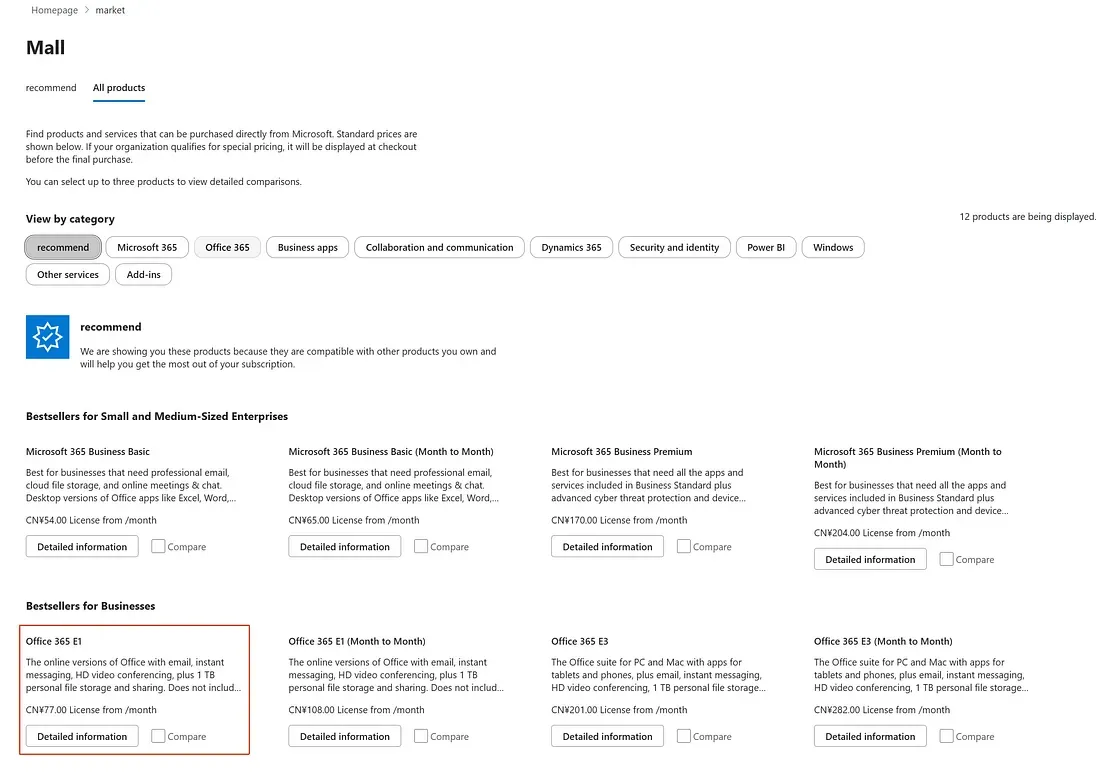
The E1 trial was available for one month and included OneDrive. I started the trial. Don’t worry, it’s free.
Your available products may be different depending on your tenant and Microsoft’s current offerings.
Step 2 — Assign the E1 license to the existing user
Starting the trial wasn’t enough.
I went to the user’s account and assigned the new E1 license to the same user account that owned the original OneDrive.
This was important. Do not recreate the user. Do not edit the user. Just reuse the existing user account and assign a valid license to that account.
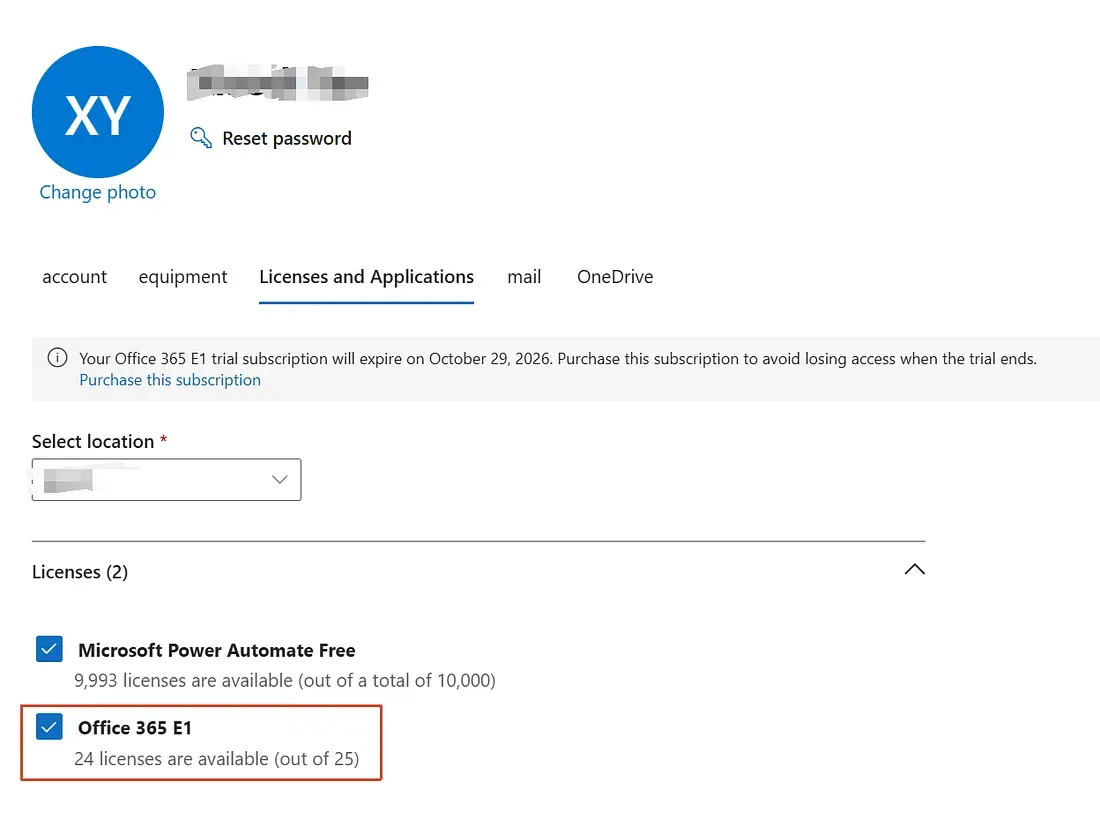
However, if you try to access your OneDrive now, it wouldn’t work. This was the part that initially confused me.
There was one more step.
Step 3 — Recreate an OneDrive access link from the user management page
Navigate to the user management page and open the existing user. Click the OneDrive section.
There was an option to create a file link for accessing the user’s OneDrive files, with permissions to view and edit the files.
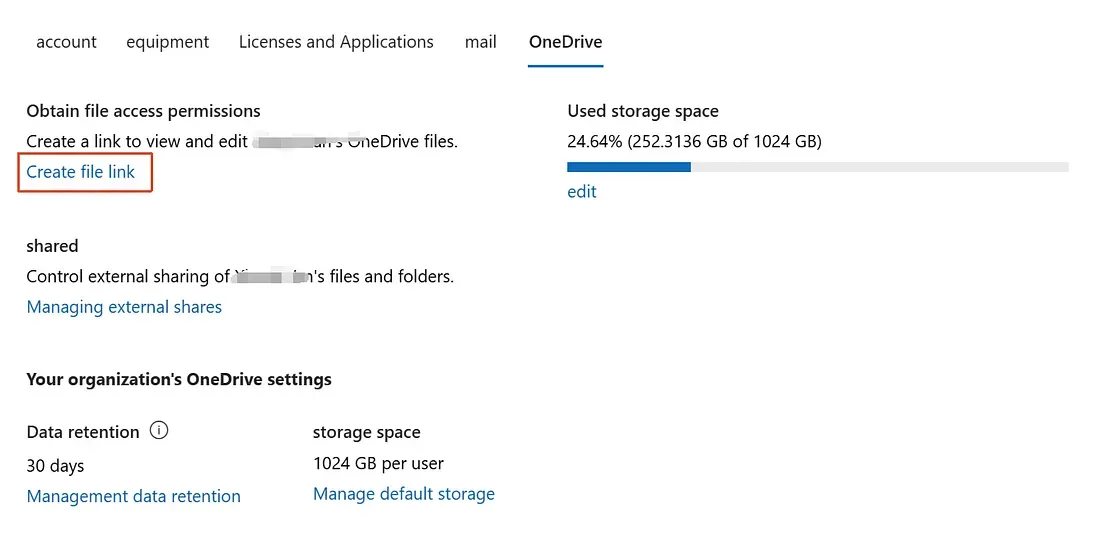
I created that link. This was the critical step. After creating the link, I tried the original OneDrive URL again, and it worked!
My OneDrive app on my windows laptop also worked and can sync data successfully.
Of course, the first thing I did next was to download all the files to my local machine:
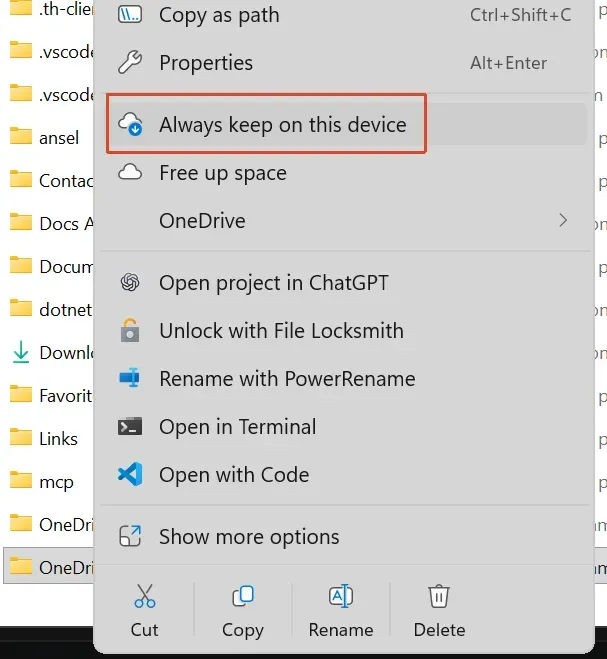
The good thing was I didn’t need to create a new OneDrive or migrate the data to a new subscription. I just wanted to keep my files.
Step 4 — Cancel the trial subscription
Don’t rely on the trial subscription as the final solution. The E1 trial was useful but it’s just a workround. You need to cancel it and move to another subscription, otherwise you will need to pay for it after one month.
Summary
I cannot say exactly what happened internally in Microsoft but they have decided to retire the Office E3 Developer subscription and ask users to migrate to Office E5 Developer program.
If you encountered the same situation, don’t panic. If the subscription says Deleted, don’t immediately assume that all your files have already been physically destroyed. Follow this article, and you may still save your files.
Finally, remember to backup your files reguarly, and don’t rely on one way.
Also, don’t forget to cancel the trial subscription after you download all your files, otherwise it will be automatically renewed and you will need to pay for it.